The app
YGOOW for Android puts the whole design in your pocket: a local identity, offline keys, per-message encryption, and a connection that can ride Tor.
Every day · 6 screens →
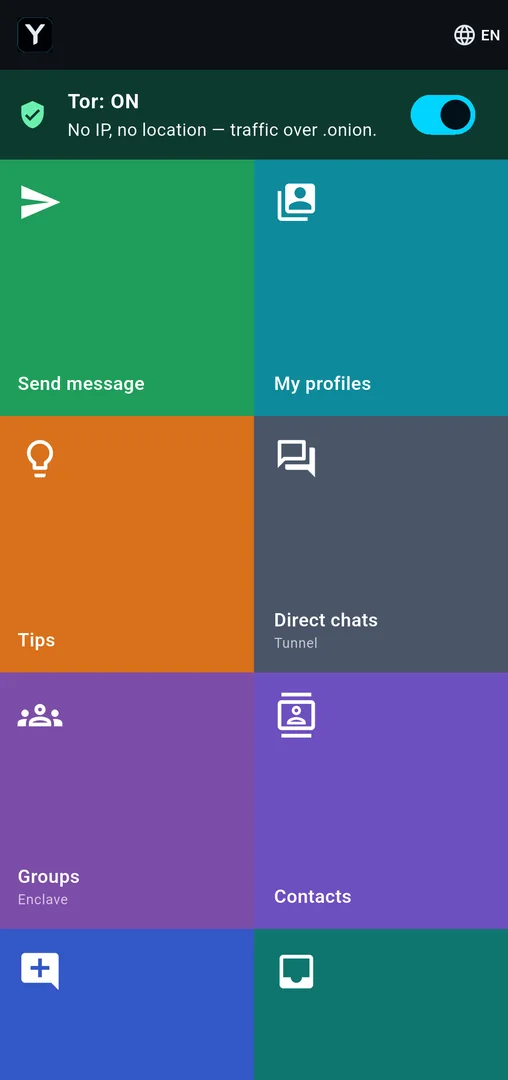
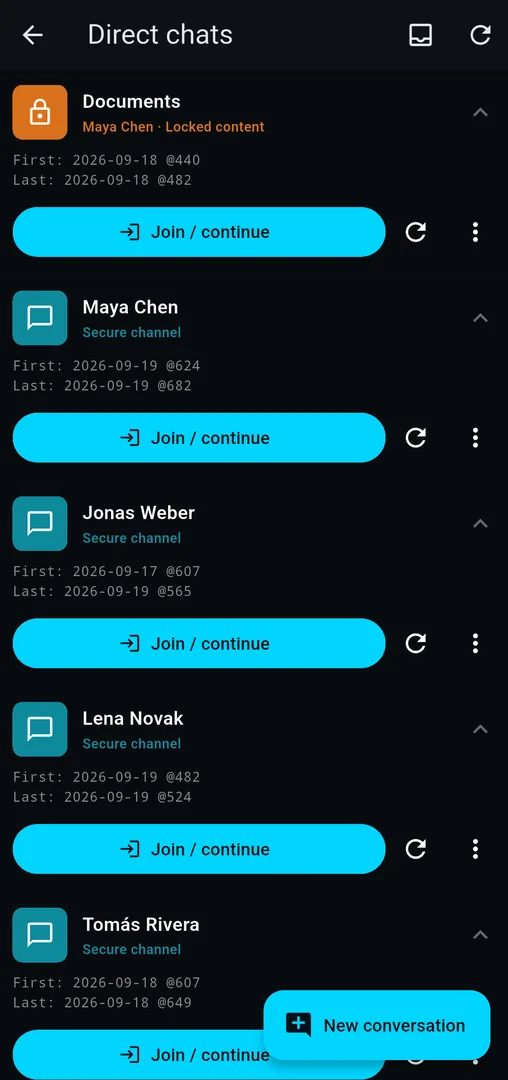
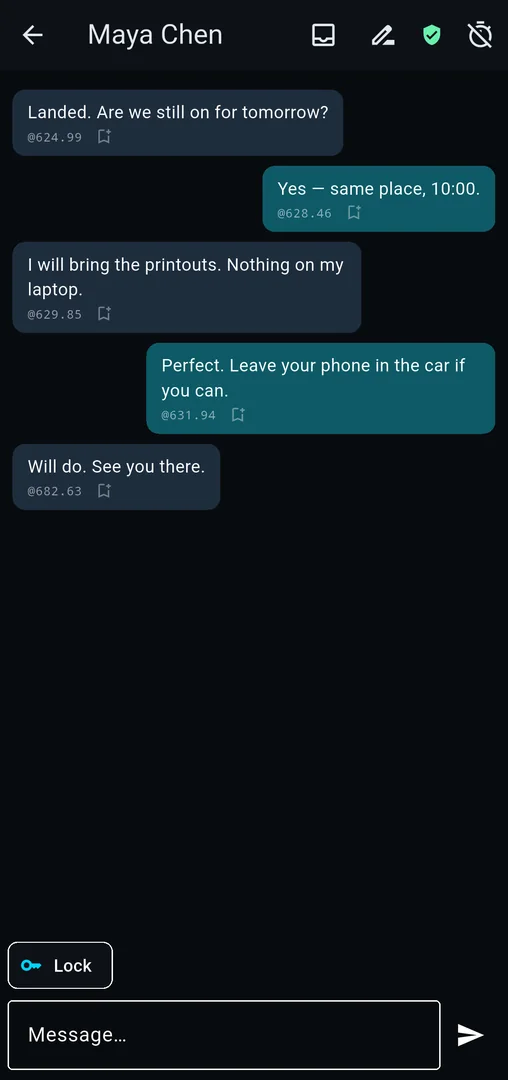
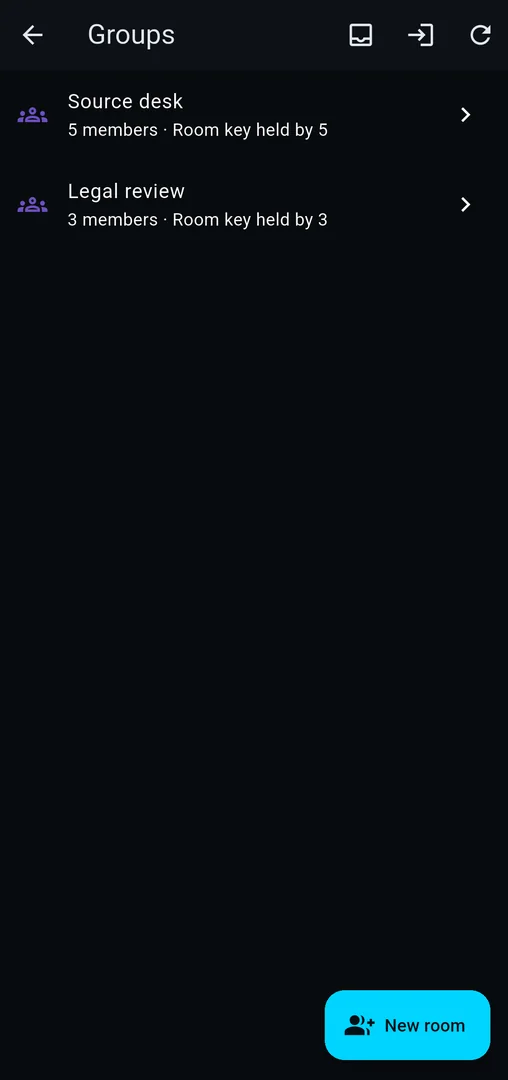
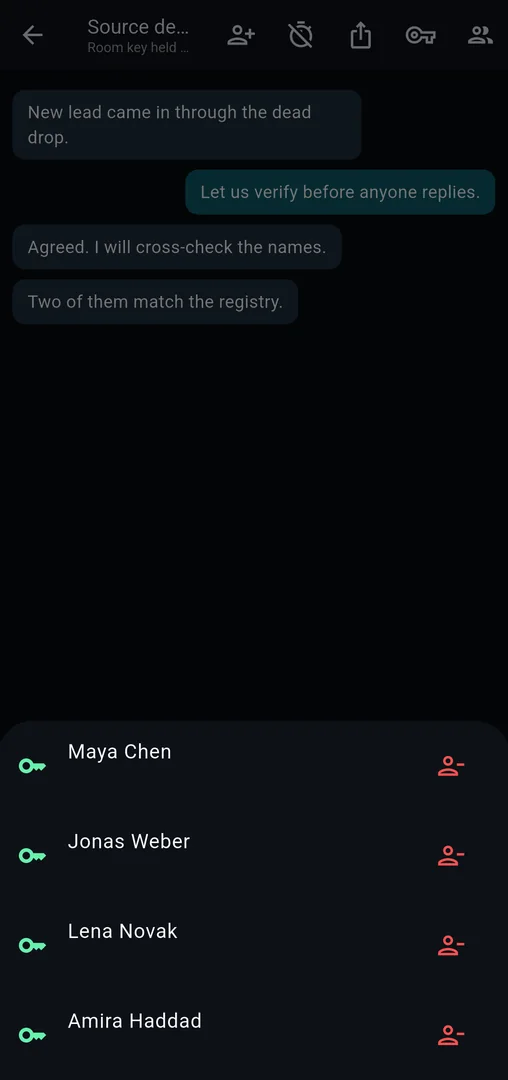
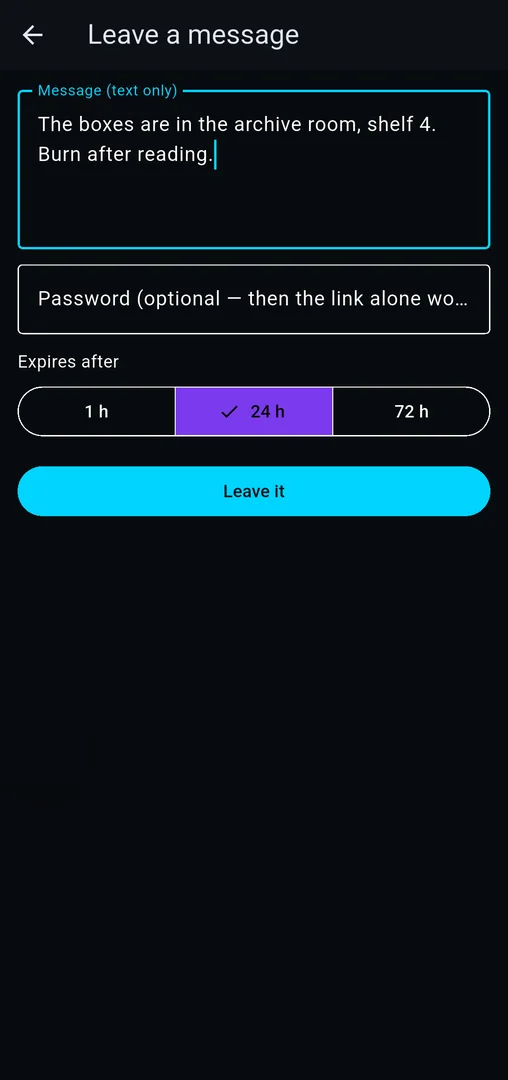
Who you're talking to · 5 screens →
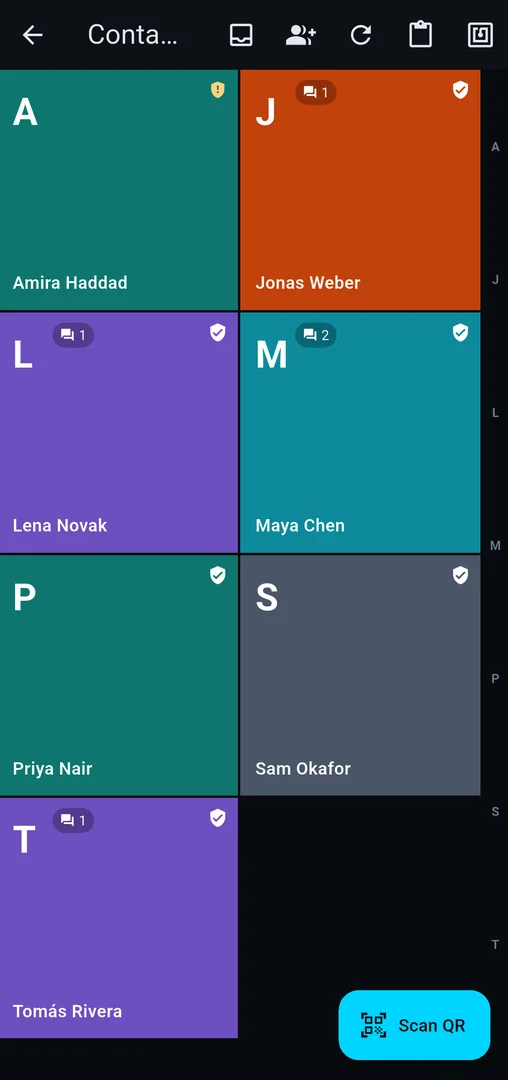
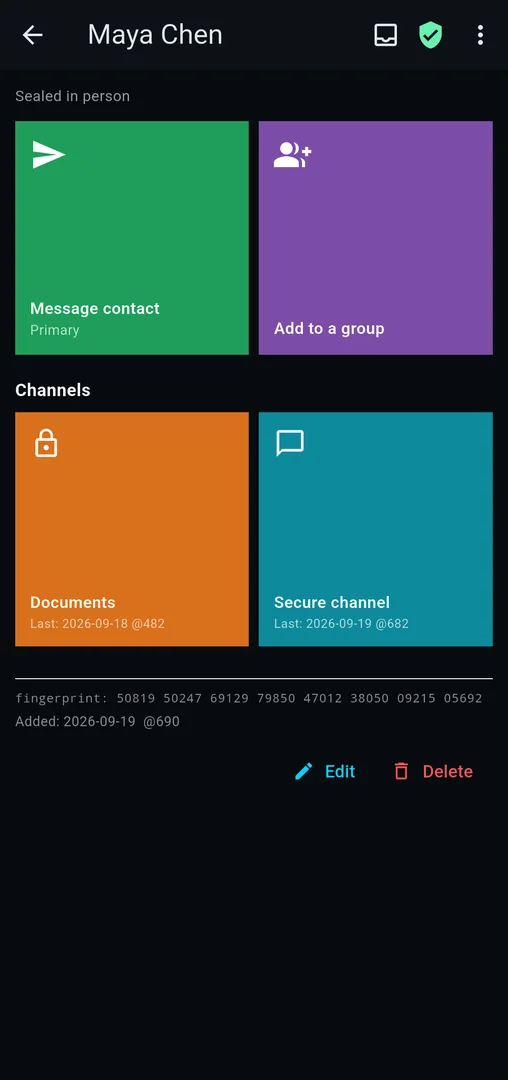
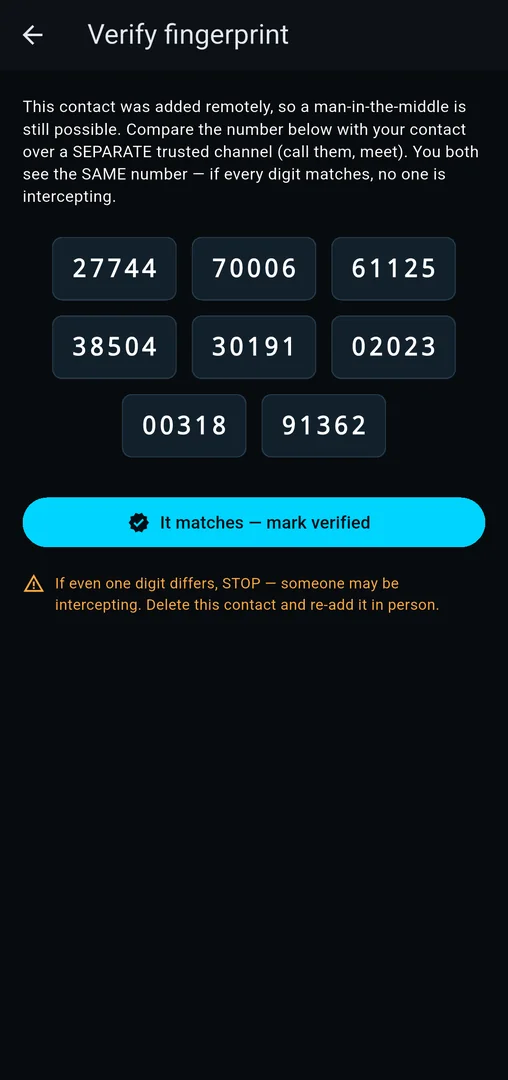
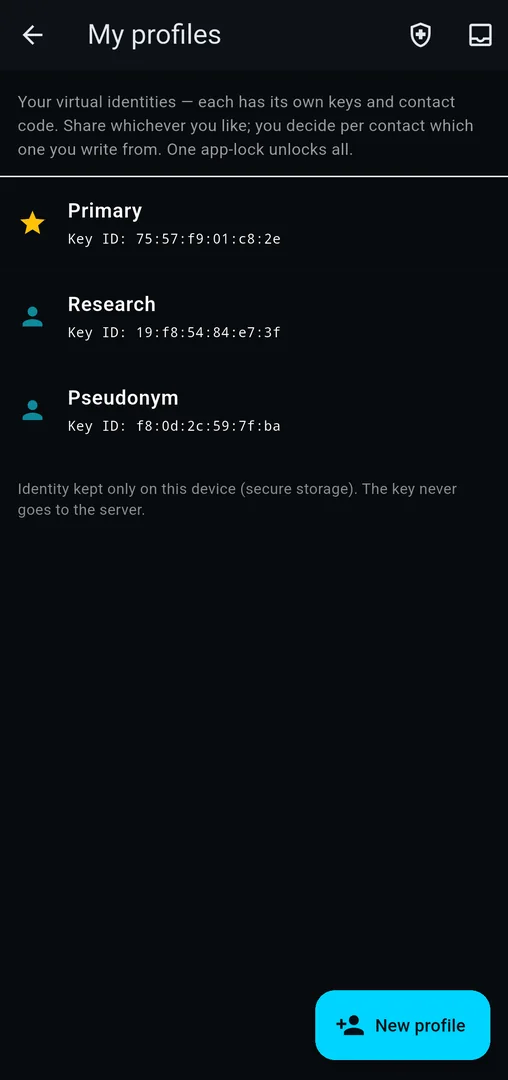
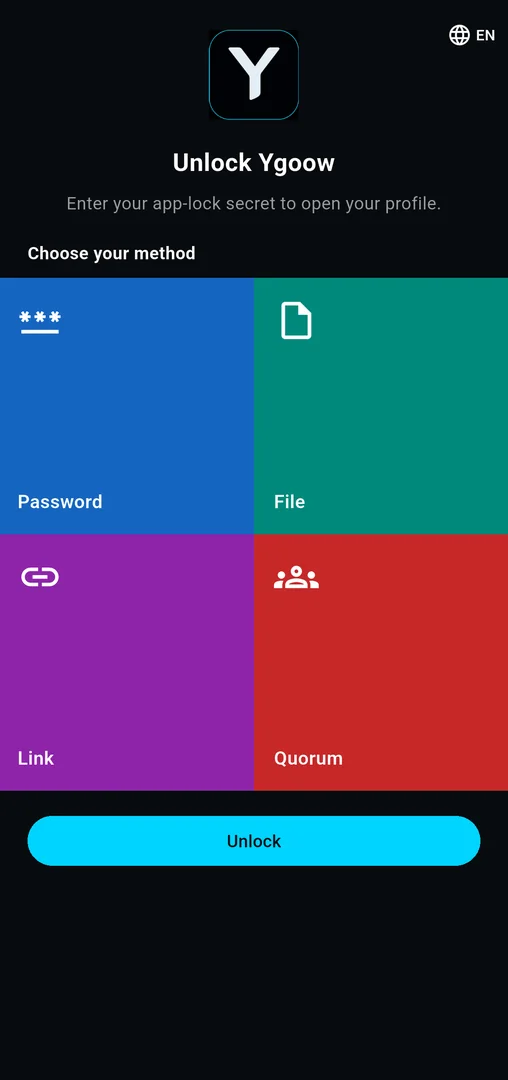
Protection you choose · 4 screens →
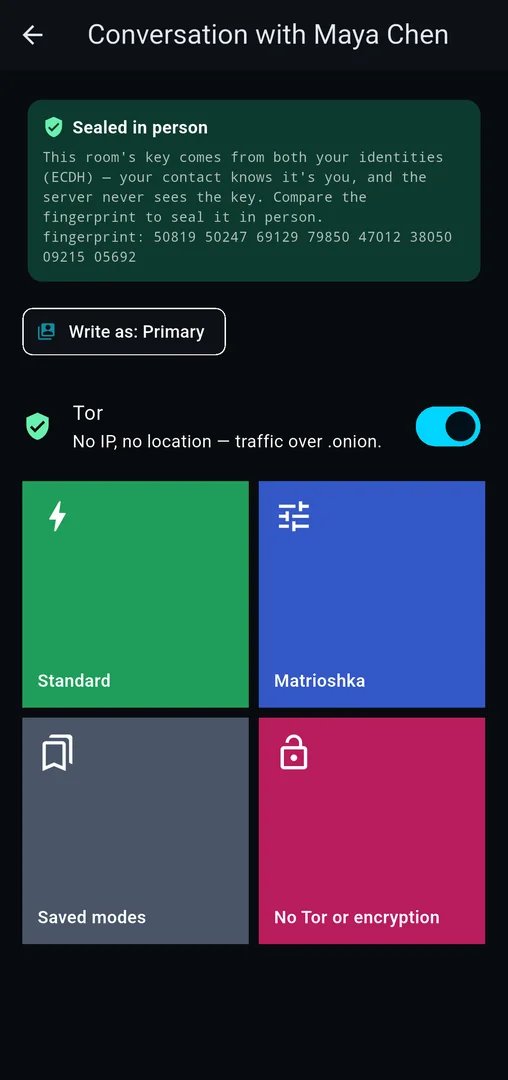
The app explains itself · 4 of 14 tips →
Status
The app is in active development and headed for Google Play. The screens above come from the current development build (September 2026), filled with demo contacts. What is finished and what is still ahead is on the progress page; follow the blog for news.
What it does
- Local identity, no account. Your keypair is generated and stored on the device, behind your app-lock — a password, a file, a quorum, biometrics, or a YubiKey (over NFC) as a second factor. Nothing leaves without a deliberate action.
- One-to-one and groups, kept apart. Conversations with one person and group rooms live in separate places, because they are different things: a one-to-one channel is deniable, a room trades that for knowing who said what among its members — the app tells you before you start one. A new room can be built from the members of rooms you’re already in.
- Talk to a contact, not a room. Add someone once, then just write to them — the conversation is derived from your two identities, with no room code to pass around. For a one-off with a stranger, an invite or a shared key still works.
- More than one you. Hold several identities behind a single lock — work, family, a pseudonym — and choose which one a given contact ever sees. No key or contact is shared between them, and each one’s conversations ride their own Tor circuit.
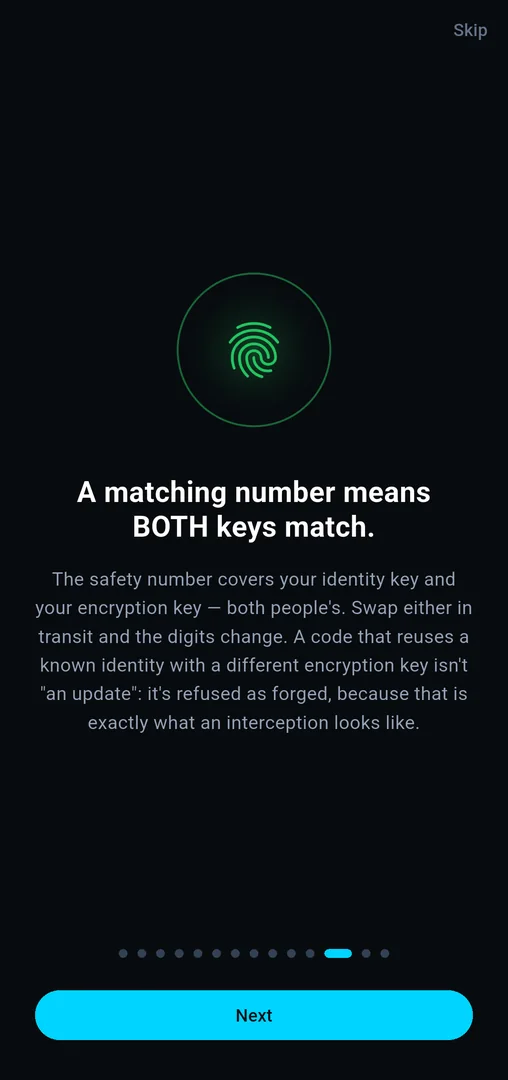
- Know who you’re talking to. A contact added in person can’t be tampered with; one added remotely shows a safety number you confirm out-of-band, then it’s marked verified. The conversation is bound to their identity — deniably, with no per-message signature anyone could wave in court.
- Your key is anything — measured honestly. A password, any file, a link the app fetches over Tor, or a random key from the invite QR. The app stretches weak secrets with a memory-hard function and shows the strength of your choice as a ceiling — at most this strong, a number we measured our own meter against — so the weakest factor never hides behind the strongest. Sealing a backup is stricter still: a dressed-up dictionary word gets a warning, not a pass.
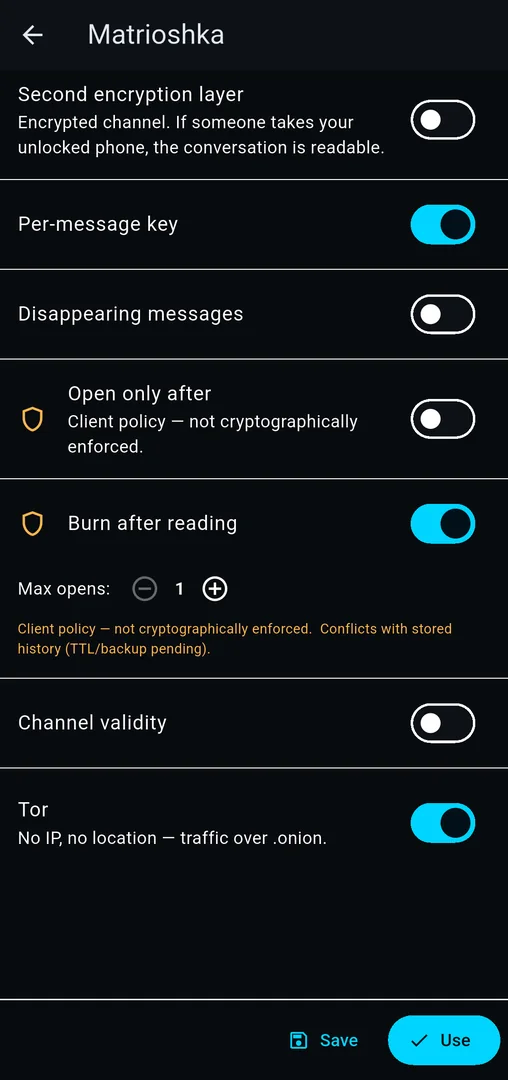
- Per-message encryption. Each message can use a different key; unreadable lines show as a lock — no error, no hint.
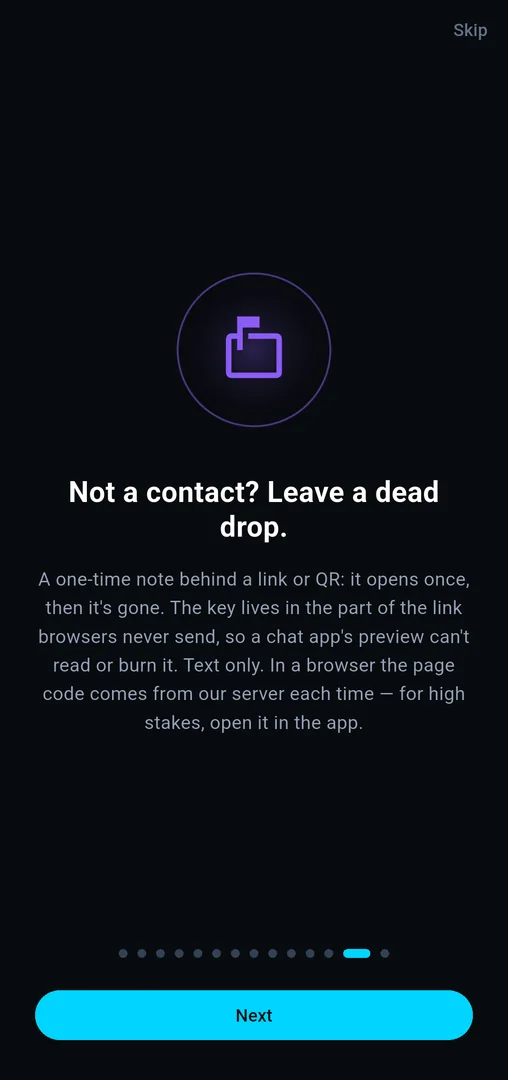
- Dead Drop. Leave a one-time text note behind a link or QR code for someone who isn’t a contact — or doesn’t have the app: it opens once, in the app or in a browser at /d, and the relay deletes it. The key never reaches a server, so link previews can’t burn it.
- Long messages, sent whole. A text too long for one frame goes out as numbered parts, each padded to the same top size — nothing is cut or silently dropped.
- Conditions to open. Seal a message to open only after a date, only so many times before it burns, or only for a set lifetime — your device checks them; the relay never sees them.
- Connection you control. Reach the relay over Tor (no IP, no location), over bridges where Tor is blocked, or over clearnet — the app states what each mode reveals.
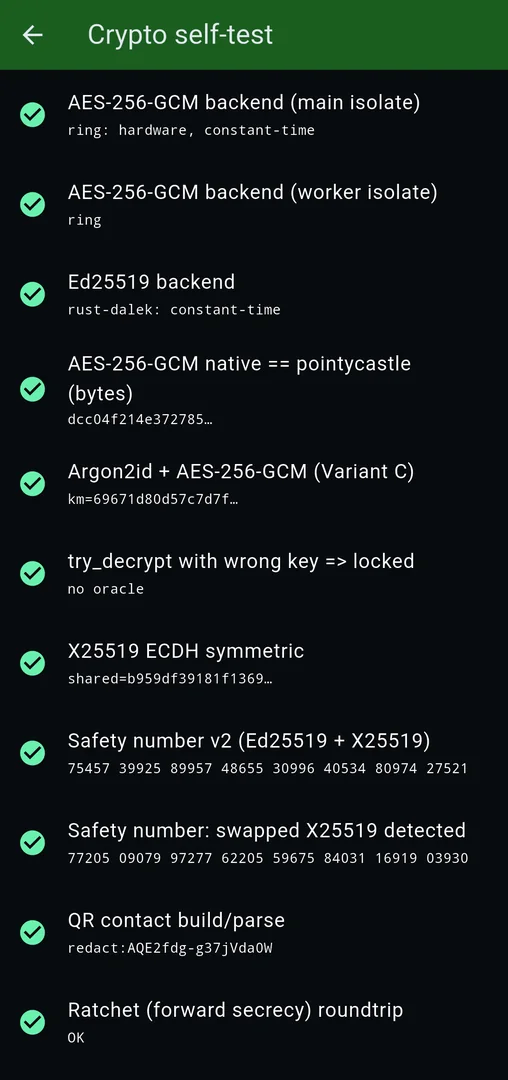
- Encryption on the phone’s own silicon. Messages are sealed with AES-256-GCM in a native library on the processor’s crypto instructions — about 290× faster than before, and measured on the phone free of the timing leak the previous library had. The self-test shows which implementation is running.
- Metadata shaped, not just hidden. Blocks are padded to a size bucket, the conversation address rotates per-conversation, and a high-risk mode adds cover traffic the relay cannot tell from your own frames. What the relay can still infer from timing, we measured and wrote down rather than rounded off — see the whitepaper.
- A decoy for coercion. Set a second password that opens a decoy profile to show under pressure; your real profile stays hidden in the same store. Measured over months of simulated use: without the decoy password, copies of the phone’s storage and the time the unlock takes don’t give it away — deniability against a search, not invulnerability against a determined coercer, and we publish the edges (trust model). A panic lock disarms biometrics, and the screen is blocked from screenshots and the “recent apps” preview.
- A hardware key as a second factor. Optionally require a YubiKey (over NFC) on top of your secret: unlocking then needs both. The challenge-response is computed on the key and never leaves it — a local access gate, not a per-message signature, so the conversation stays deniable. Opt-in for high stakes (a physical token is itself a “tell”), and lose the key and your secret alone won’t open the app.
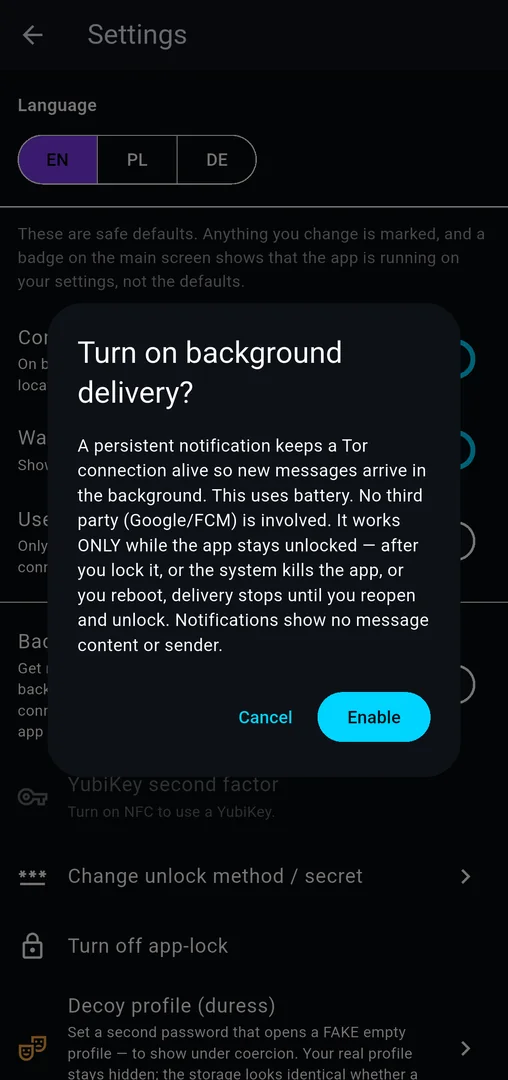
- Notifications without Google. No Firebase, no push broker that could learn who pings whom — a local service delivers while the app is unlocked, and the alert carries no content and no sender.
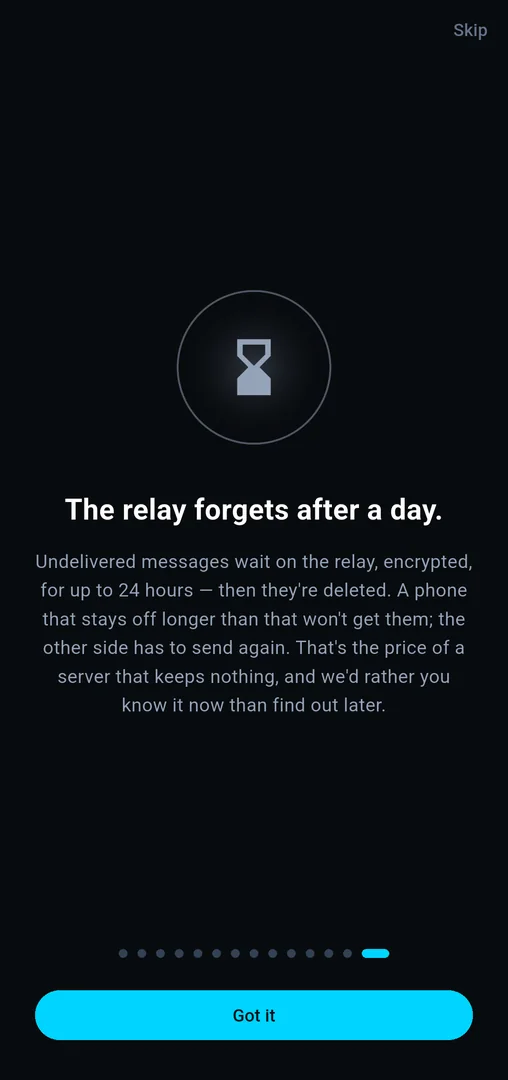
- Works asynchronously. Messages wait, encrypted, for up to 24 hours until the other side reconnects — even across a dropping Tor circuit.
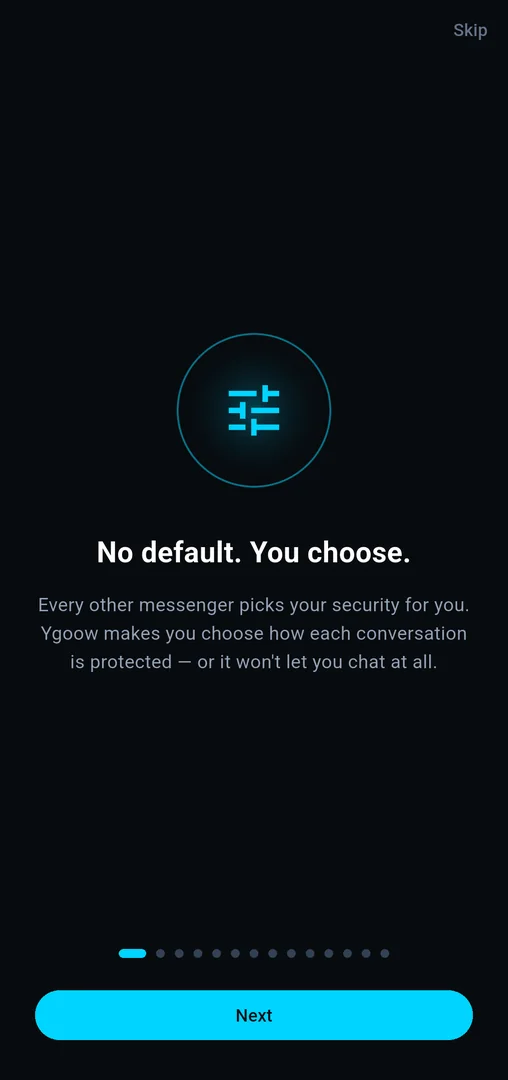
- You choose the protection — no insecure default. Every conversation starts with a deliberate choice of how it is secured; the app won’t let you slide into an unprotected chat. See choosing your protection.
Who it’s for
YGOOW is a deliberate tool, not a default one. It fits:
- Journalists, researchers, and their sources who need a channel with no account trail.
- Activists and legal professionals handling material that must not leak through metadata.
- Small, high-trust groups who can agree a key in person and want minimal trust in any server.
- Anyone who wants to communicate with no identity stored on a server and no phone number.
It is not built for a family group chat, a lifetime message archive, or a contact who will lose their key — there is no recovery and no override. If you need something a non-technical relative can use without instructions, YGOOW is the wrong tool, and we would rather say so before you install it than after.
Getting started
- Open the app. An identity is created locally on first launch — no sign-up.
- Add a contact. Scan each other’s QR in person — a key swapped face-to-face can’t be tampered with — or add someone remotely and confirm their safety number over another channel.
- Just message them. The conversation key comes from your two identities; there is nothing to agree and no room code to share. (For a one-off with someone who isn’t a contact, carry a shared key or a random key in the invite QR instead.)
- Add conditions if you want. A separate content secret, a lifetime, an open-after date, or burn-after-read — per conversation or per message. Anyone without what it takes sees only a locked block.
Connection modes
| Mode | Server sees your IP? | Use when |
|---|---|---|
| Tor | No | You want to hide where you are |
| Tor bridges | No | Tor itself is blocked on your network |
| Clearnet | Yes | Hiding your location isn’t the point |
Tor is on by default — you ride the onion service unless you deliberately switch to bridges or clearnet. The app makes the choice explicit and remembers it.
Your keys, your responsibility
There is no account recovery and no administrative override — by design, we can’t read your messages or restore lost keys even if compelled. Back up your keys: the app exports a single sealed file (Argon2id, 256 MiB per guess; padded; optionally without history), which opens with the secret alone. See the trust model, the FAQ, and the whitepaper.